> ## Content Index
> Fetch the complete content index at: https://blog.kryll.io/llms.txt
> Use this file to discover other available public pages before exploring further.
# How to add your Binance API key to your Kryll.io dashboard
- URL: https://blog.kryll.io/how-to-add-your-binance-api-key-to-your-kryll-io-dashboard/
- Published: 2018-08-30T10:08:00.000Z
- Updated: 2023-03-06T11:03:14.000Z
- Author: Kryll.io
- Tags: #Import 2026-11-03 15:02
CAUTION : This article is outdated.
Please find updated version here :

You want to link your [**Binance**](https://accounts.binance.com/en/register?ref=B0OYM38N) account to your **Kryll** account? Nothing could be simpler, just create an API key. All the steps are explained in this tutorial.
### Don't forget that you can benefit from a 20% discount on your Binance fees with Kryll: [How to get your 20% discount](https://blog.kryll.io/reduce-your-binance-fees-by-20-with-kryll/).
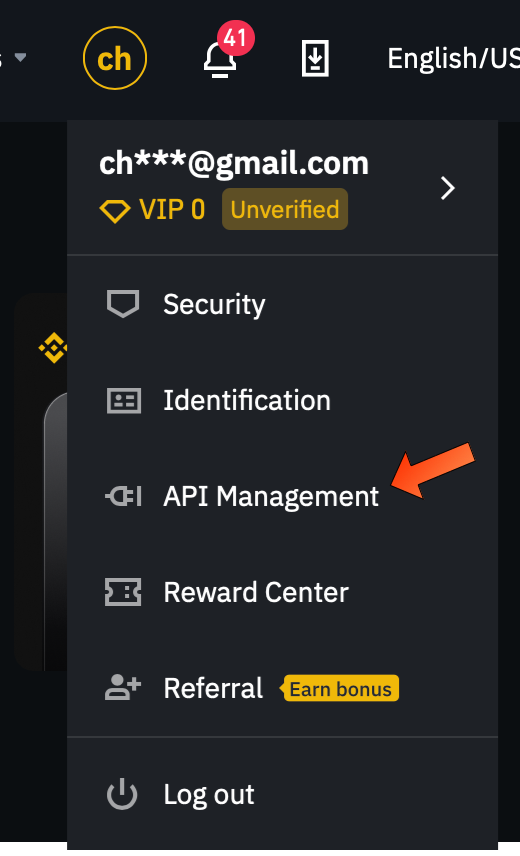
1 — On Binance website, go to the menu at the top right (the circle with the first letters of your email address) and click on "API Management".
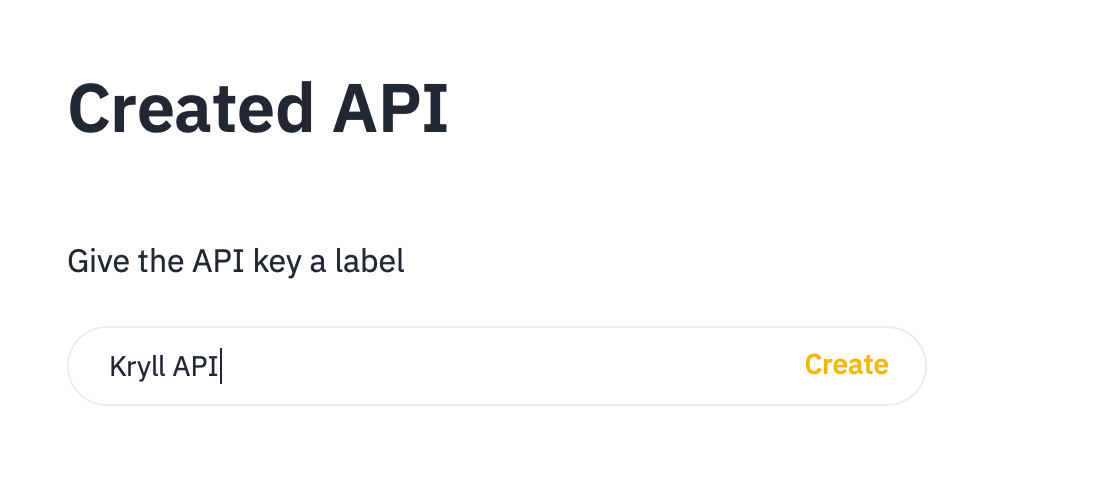
2 — Give a name to your API key and click "Create". Your 2FA code will be requested.
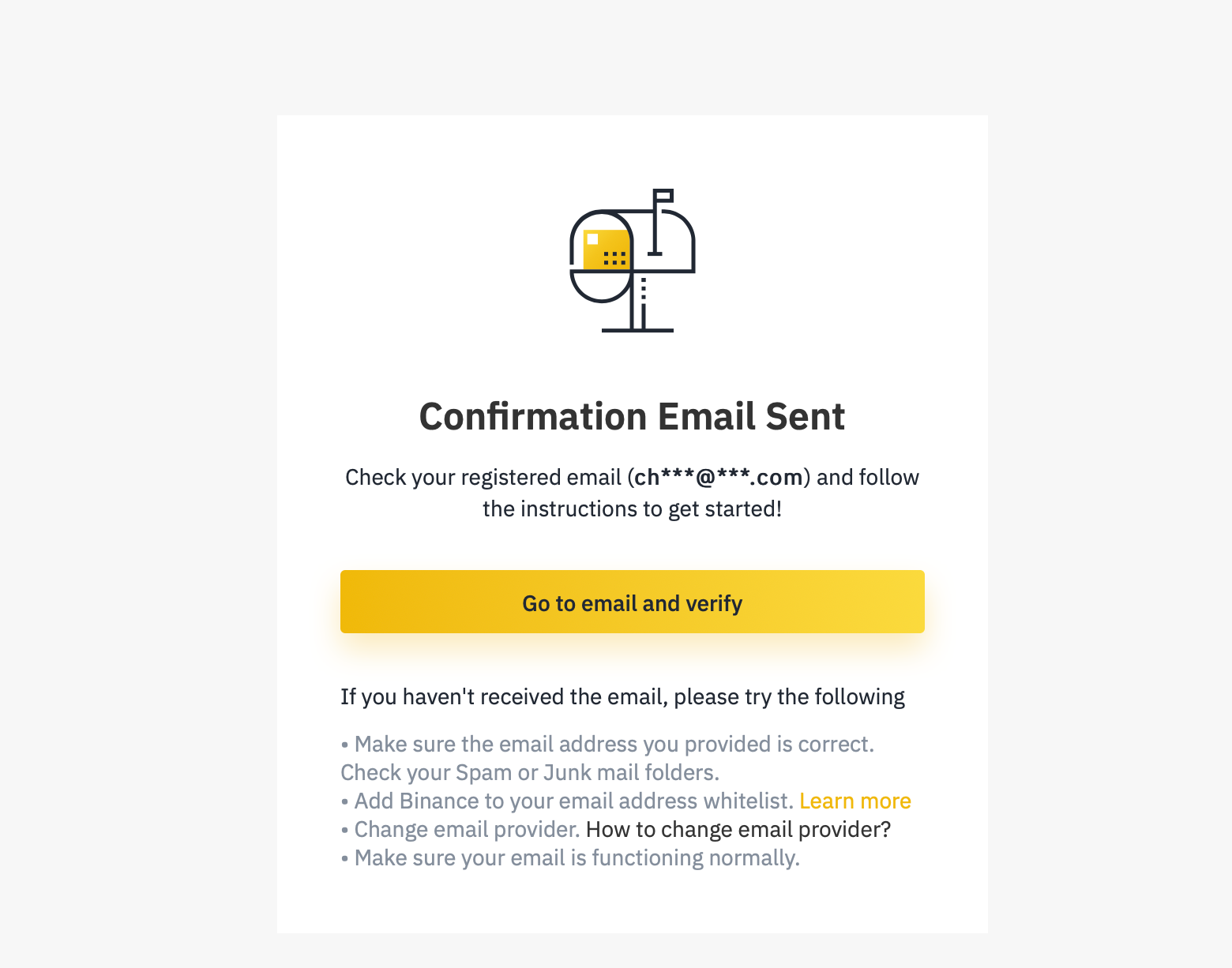
3 — Now check your email to confirm your **API key** creation.
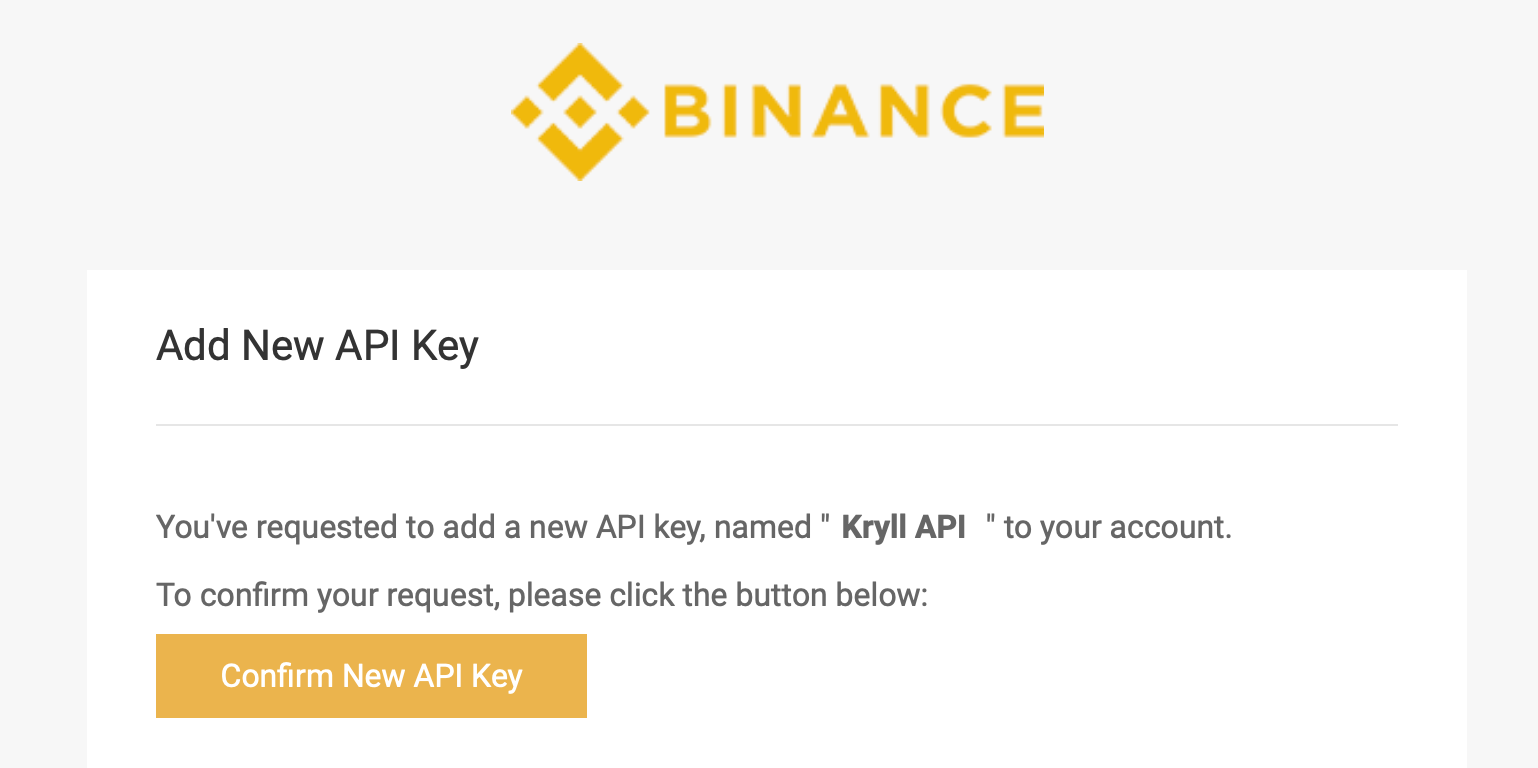
4 — Open the **Binance** email and click on “Confirm New API Key”.
5 — Your Binance API key is now created. In "API Restrictions" leave the "Read Only" and "Enable Trading" boxes checked. Also leave the IP restriction on "Unrestricted".
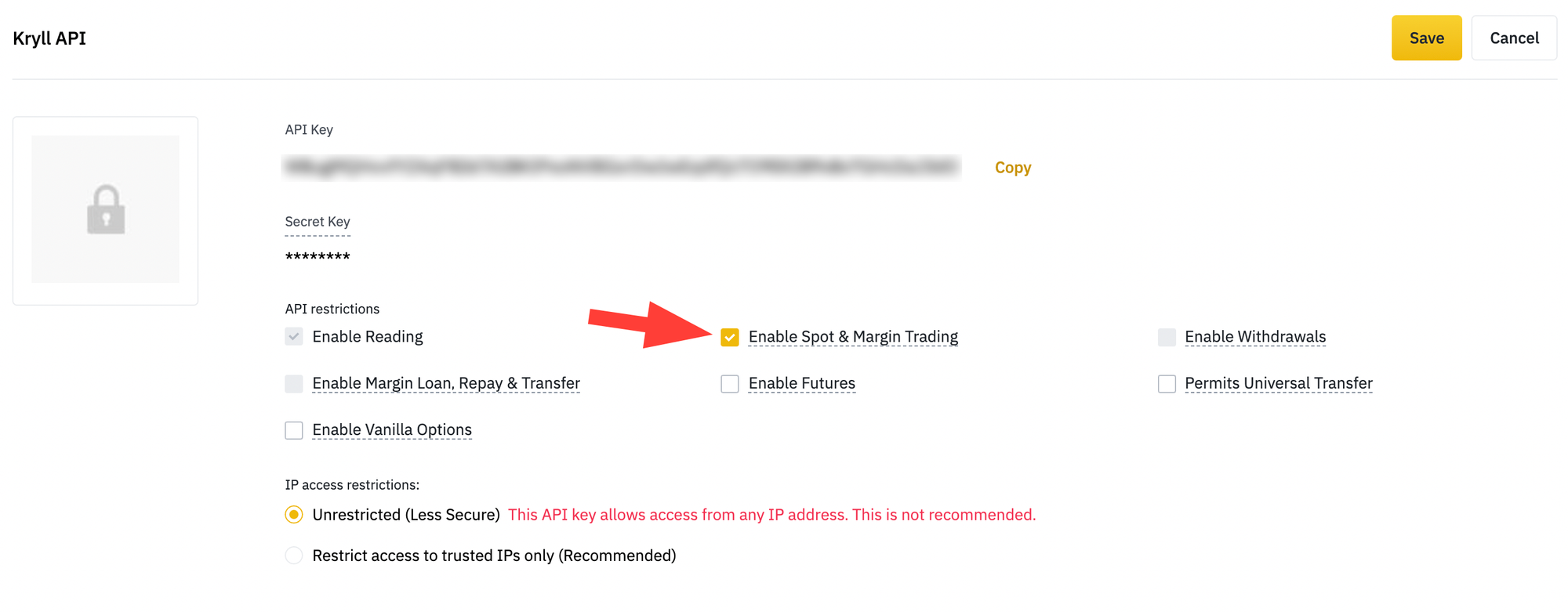
Please check "Enable reading", "Enable Spot & Margin trading" and leave IP Access to "Unrestricted"
## Note: The Kryll platform does not require the right to withdraw anything from your account. Do not check the "Enable Withdrawals" box for security reasons.
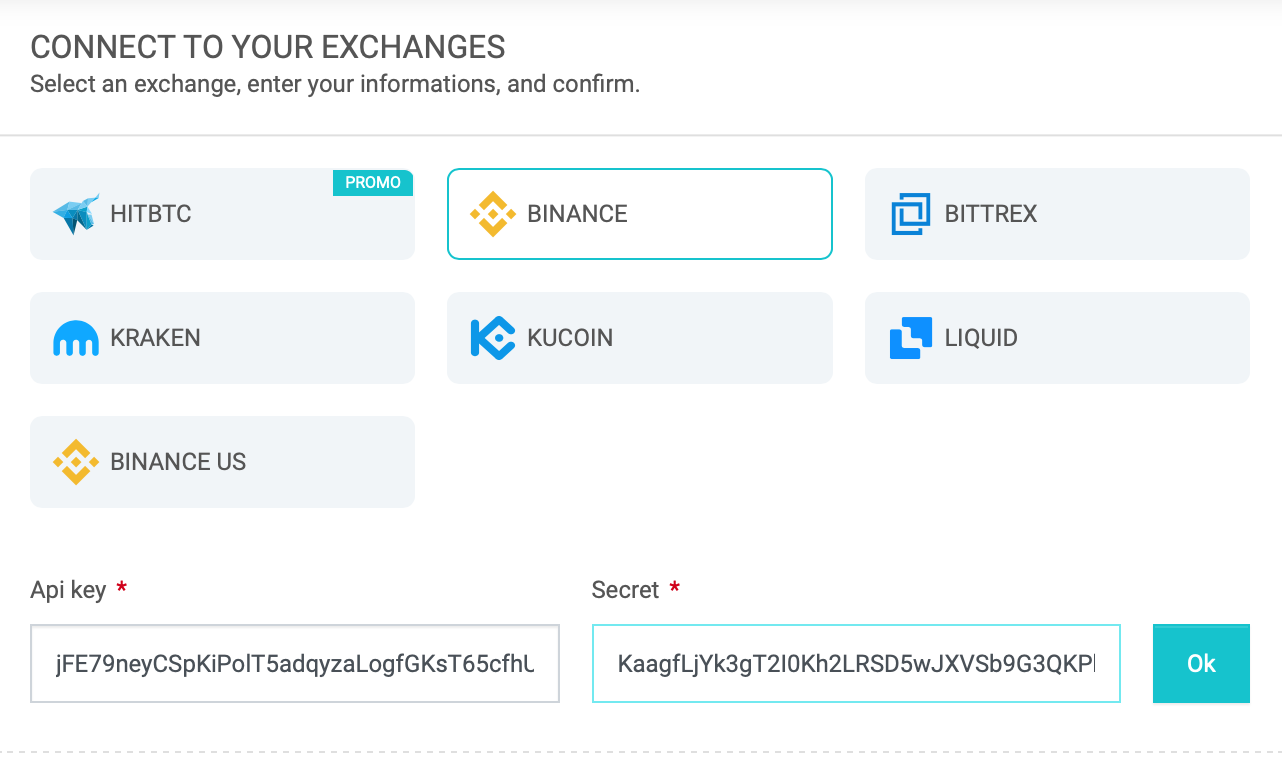
6 — Now go to your Kryll account in the "My Account" section. In the section on the right "Connect to your exchanges" select "Binance" and indicate your "API Key" and "Secret Key" that you have just created on Binance. And click on "Ok".
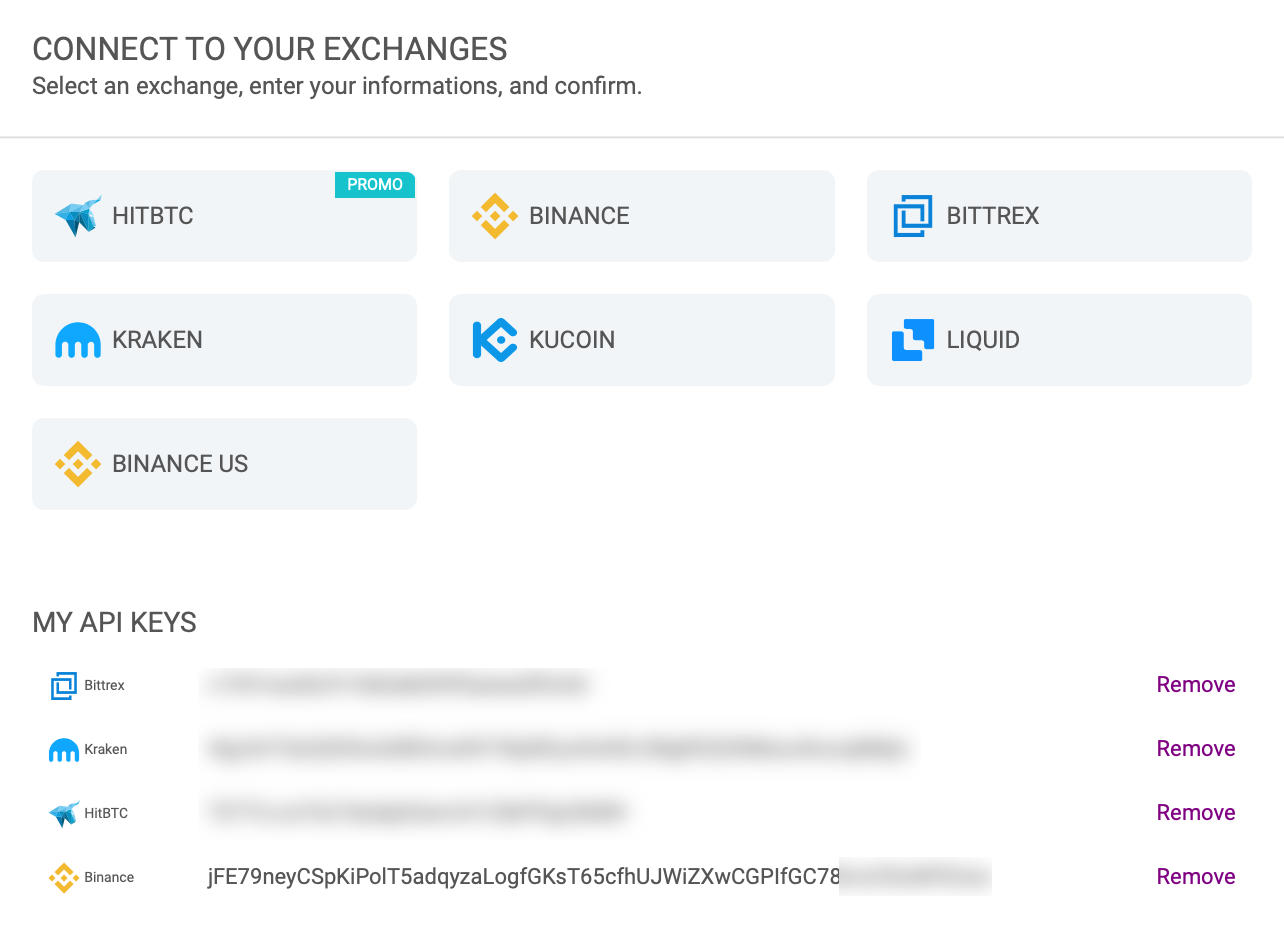
7 — Your **Binance API key** is now linked to your Kryll account! It will appear under the "Exchanges" block where you can remove it from your account if necessary.
## What’s next ?
How to get started with Kryll platform :
### Happy trading!
Website : [https://kryll.io](https://kryll.io/?ref=blog.kryll.io)
Twitter : [@Kryll.io](http://twitter.com/kryll%5Fio?ref=blog.kryll.io)
Telegram :[ https://t.me/kryll\_io](https://t.me/kryll%5Fio?ref=blog.kryll.io)
Discord : [https://discord.gg/PDcHd8K](https://discord.gg/PDcHd8K?ref=blog.kryll.io)
Facebook : [https://www.facebook.com/kryll.io](https://www.facebook.com/kryll.io/)
Support : support@kryll.zendesk.com