> ## Content Index
> Fetch the complete content index at: https://blog.kryll.io/llms.txt
> Use this file to discover other available public pages before exploring further.
# How to add your Crypto.com API key to your Kryll.io dashboard
- URL: https://blog.kryll.io/how-to-add-your-crypto-com-key-to-your-kryll-io-dashboard/
- Published: 2022-05-09T14:15:48.000Z
- Updated: 2024-02-12T12:18:03.000Z
- Author: Kryll.io
- Tags: en, #Import 2026-11-03 15:02
The **Kryll.io** team has recently announced the listing of your favorite token, the **KRL**, on the world famous exchange **Crypto.com.**
Following this news **Kryll.io** is proud to integrate this new partner in the list of exchanges supported on the Kryll platform. You can now launch your strategies from the **Kryll.io** platform using your **Crypto.com** exchange.
But before you start, you will have to **link your crypto.com API key** to our platform, you will find below the steps to follow, and in a few minutes you will be ready to launch your first strategies to our new partner.
So you want to link your **Crypto.com** **Exchange (Spot)** account to your **Kryll** account? Nothing could be simpler, just create an API key. All the steps are explained in this tutorial.
Note: Trading on KRL pairs on partner exchanges is free on Kryll platform.
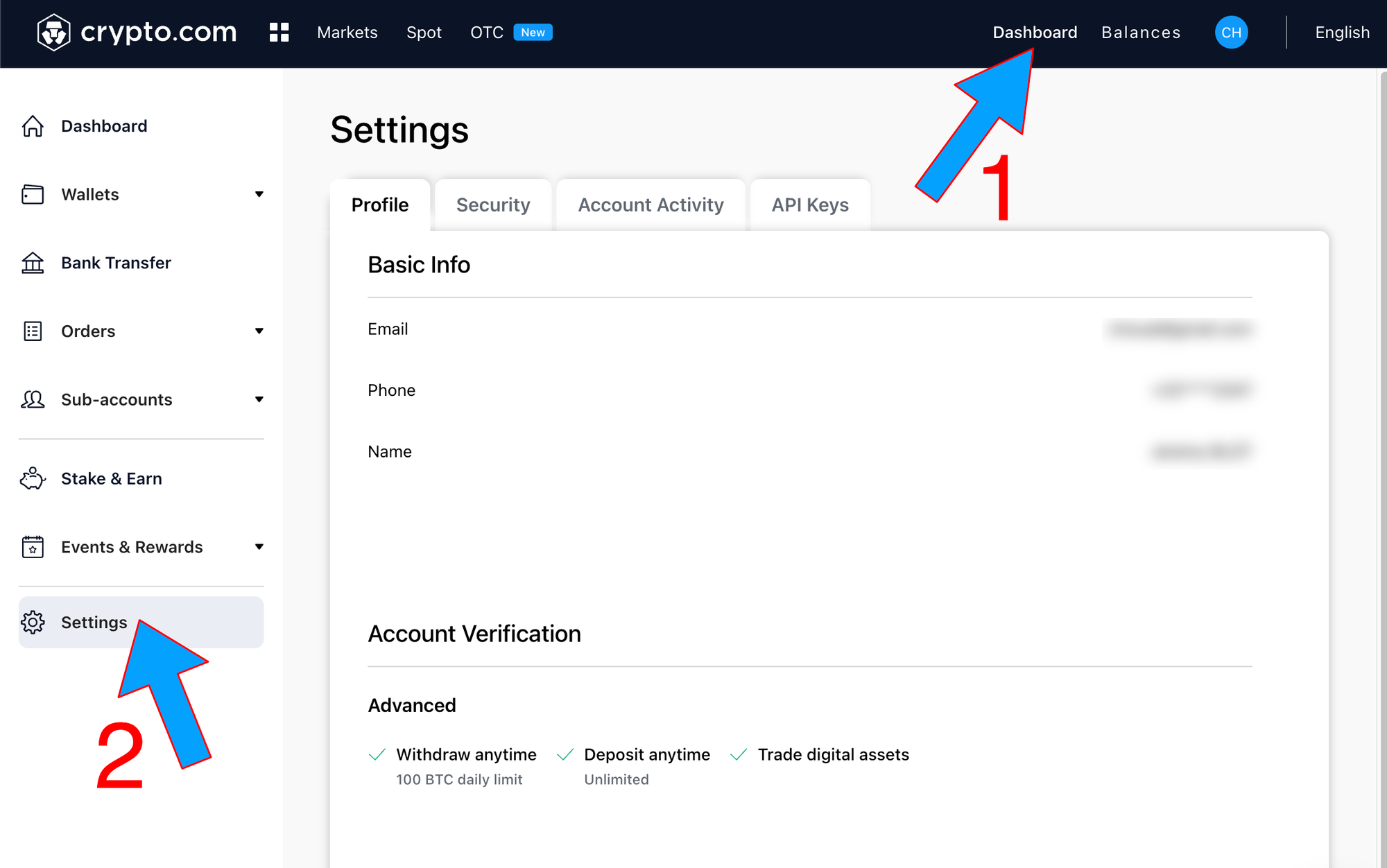
### 1 — Go to your [Crypto.com/Exchange](https://crypto.com/exchange?ref=blog.kryll.io) dashboard (1) and click on settings (2)
**Note : To add an API Key your 2FA authentication *must be enabled.***
###
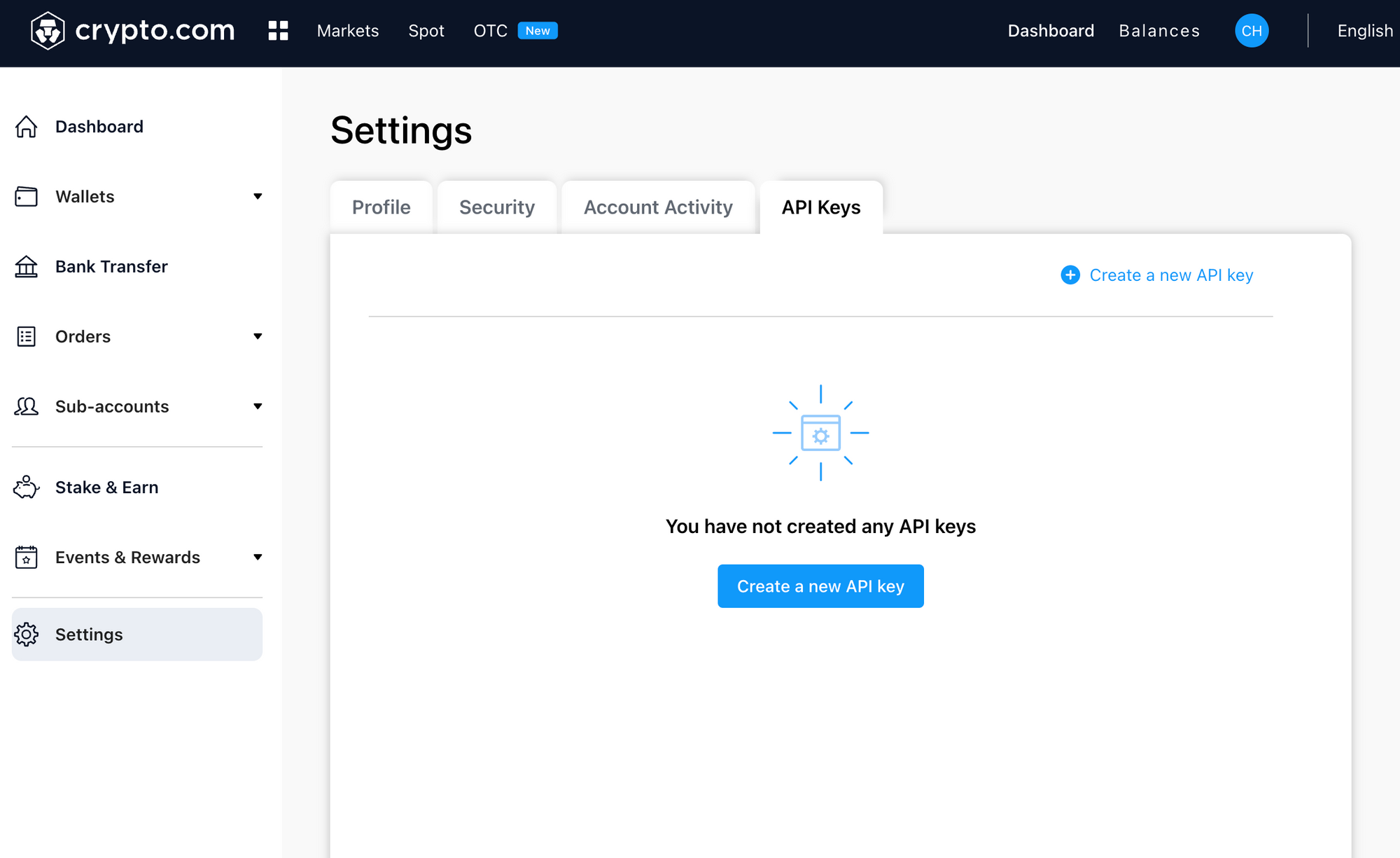
2 — Go to API Keys tab and click on "Create a new API Key"
###
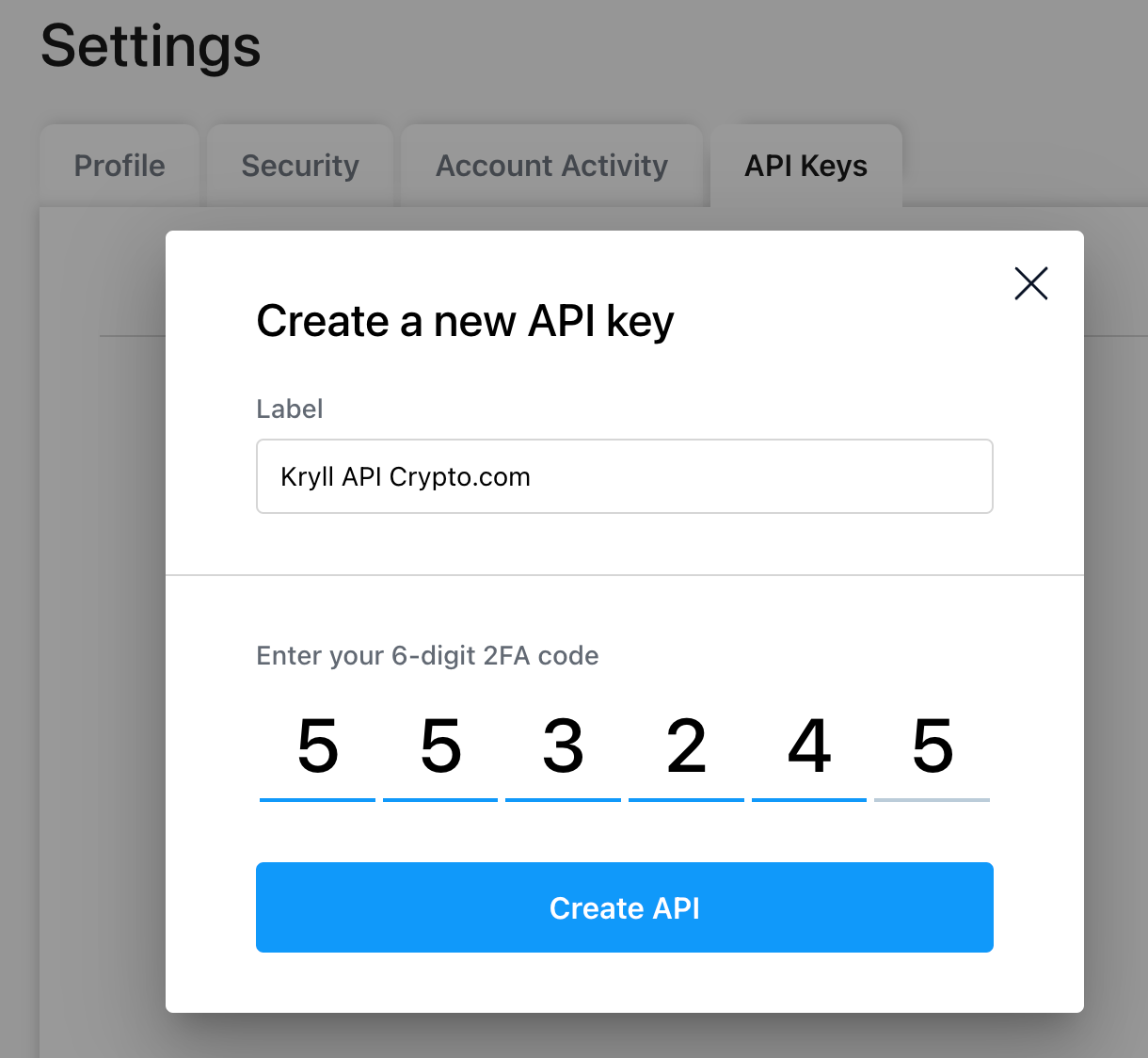
3 — Name your API Key and input your 2FA code
###
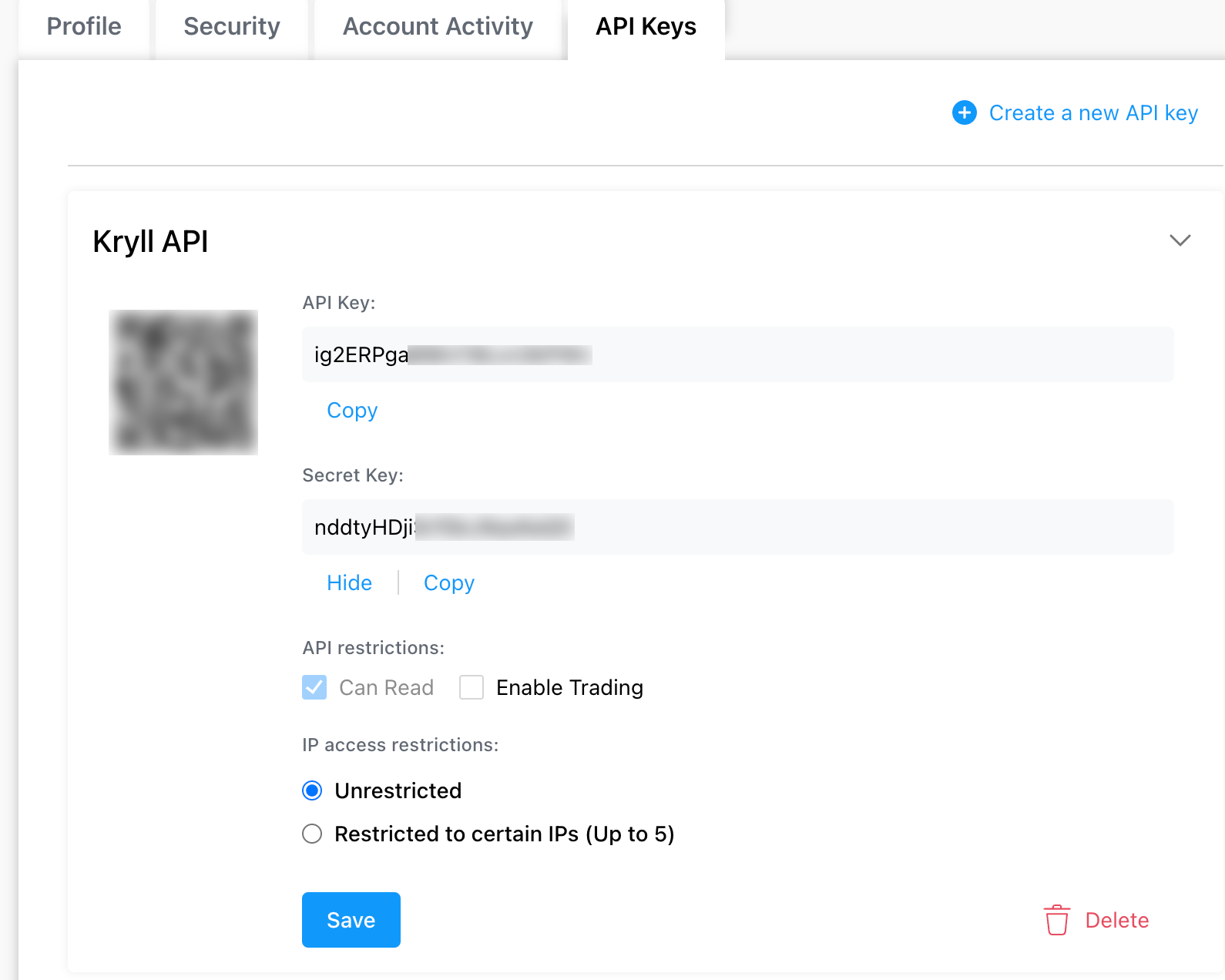
4 — Your API is now created, please save your API key and Secret Key for later
In the next step you will have to edit the trading permission.
###
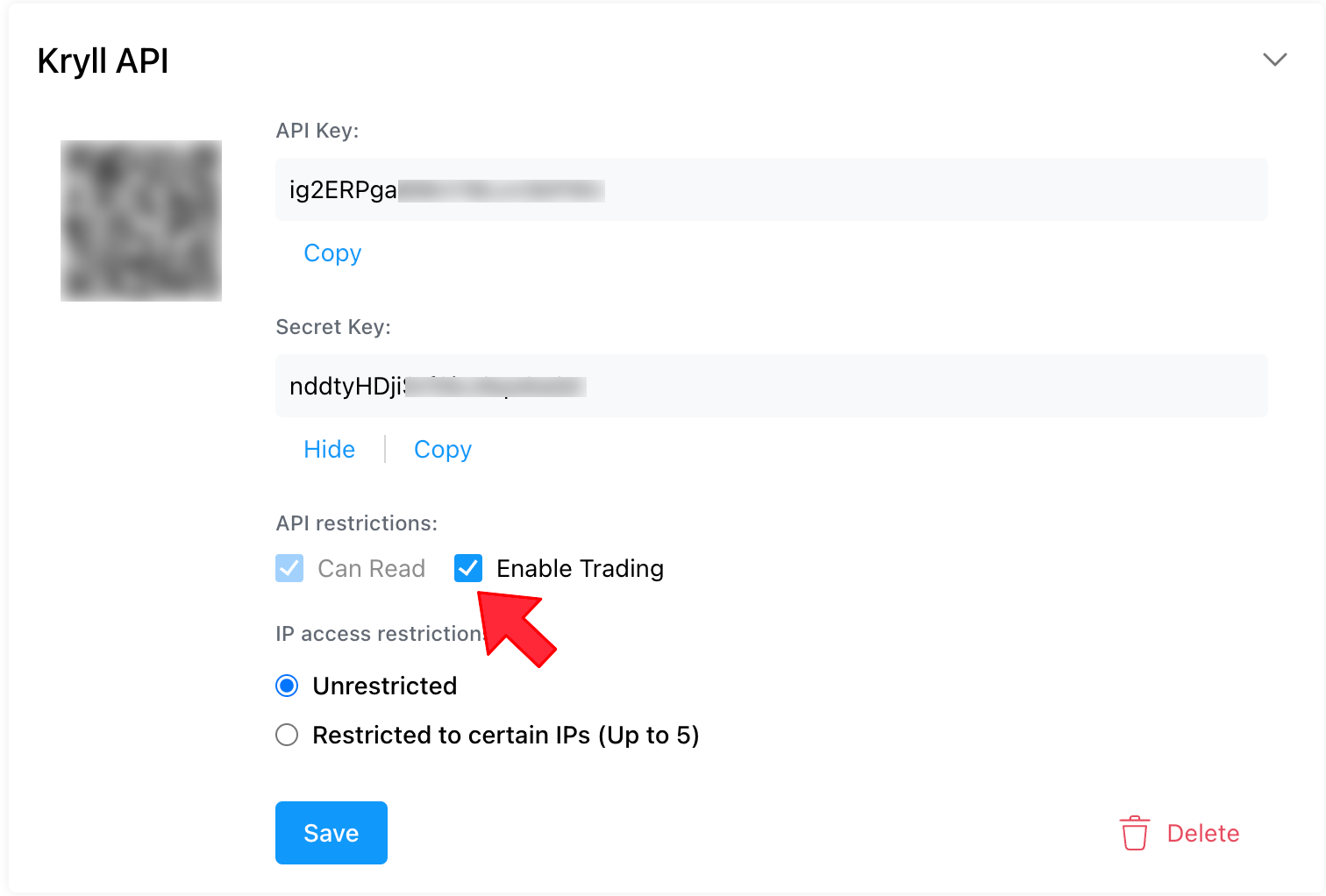
5 — Enable trading on the API key by clicking on "Enable Trading" then input your 2FA code
Note : Leave IP access to "Unrestricted".
###
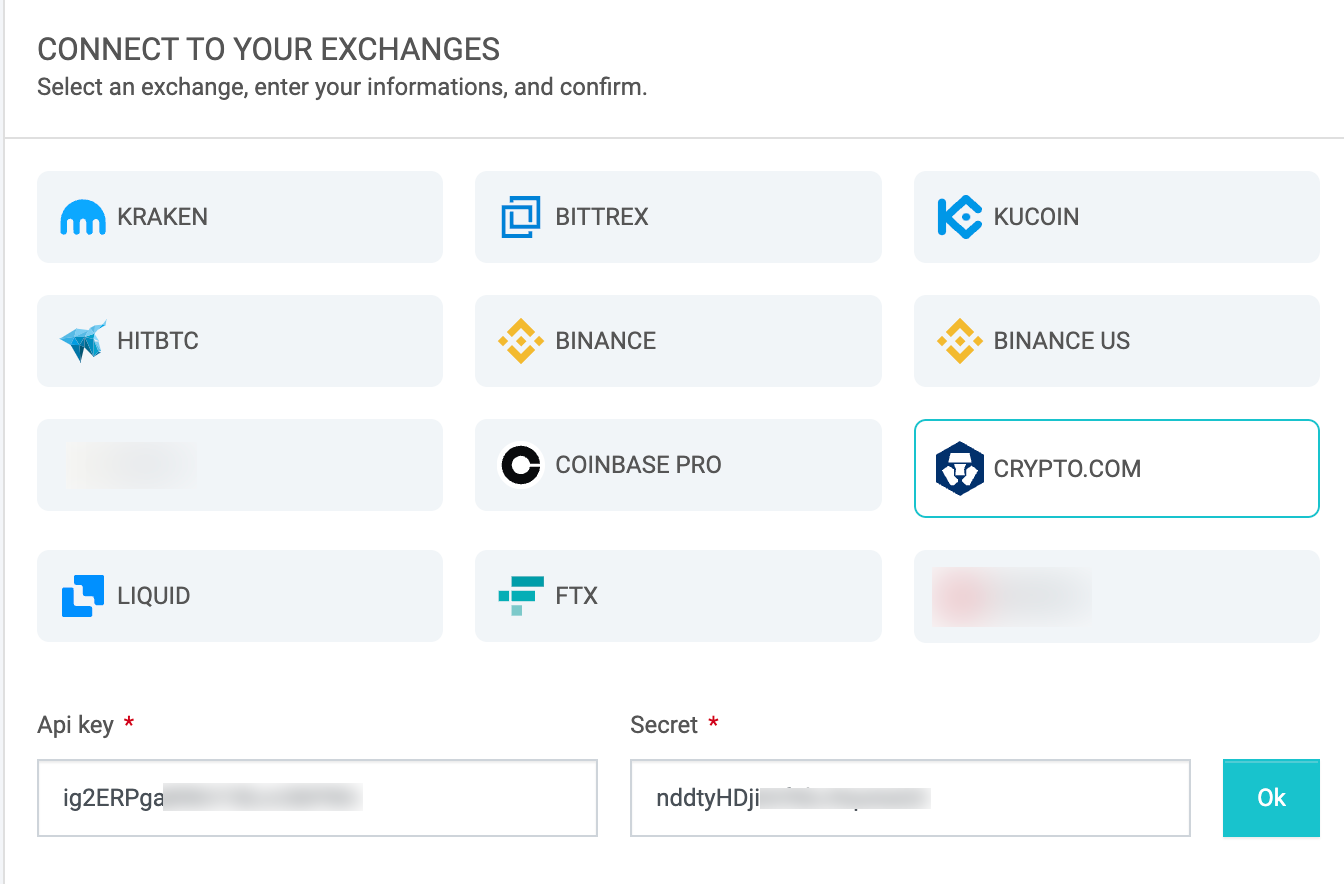
6 — Now go to your Kryll account in the "[My Account](https://platform.kryll.io/account?ref=blog.kryll.io)" section. In the section on the right "Connect to your exchanges"
Select "Crypto.com" and indicate your "API Key" and "Secret Key" that you have just created on "Crypto.com". And click on "Ok".
###
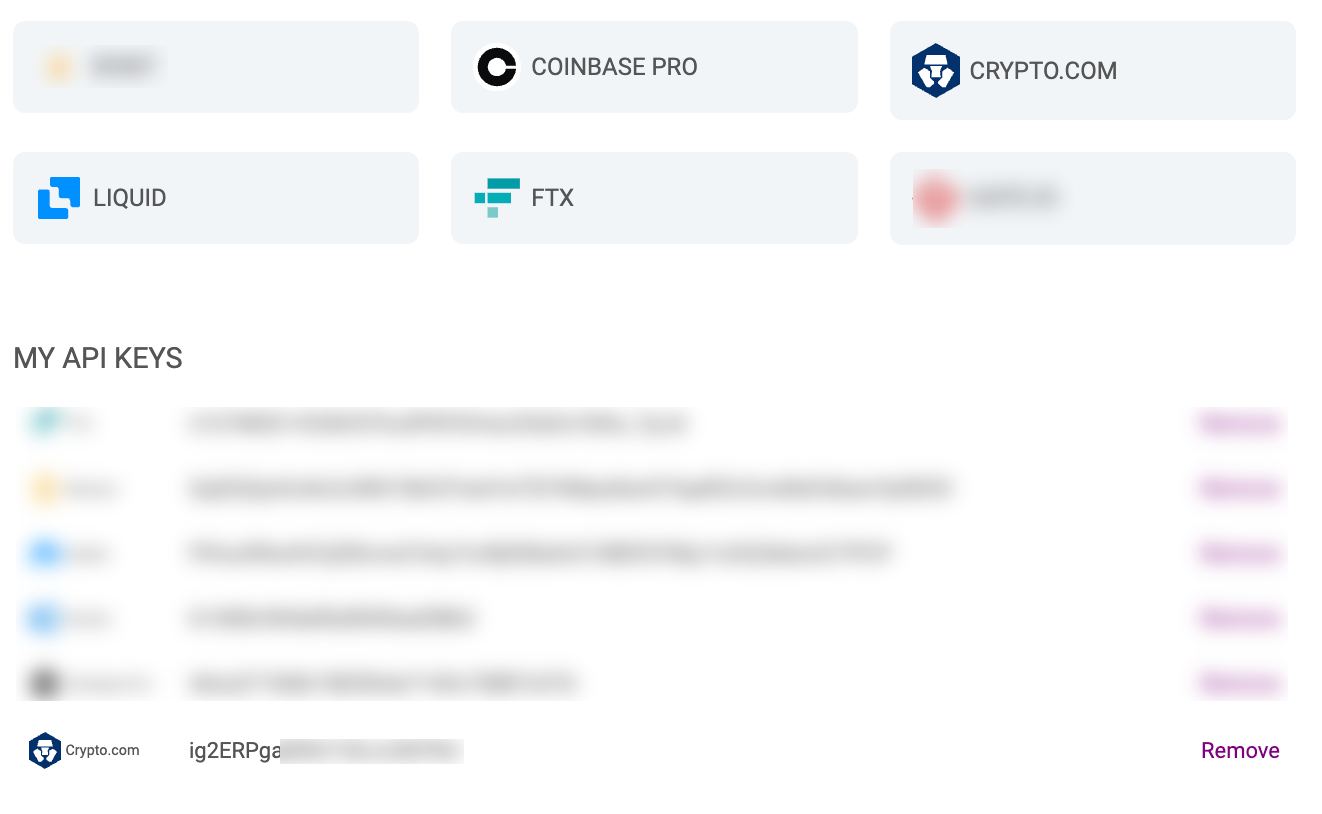
7 — Your Crypto.com API key is now linked to your Kryll account!
It will appear under the "Exchanges" block where you can remove it from your account if necessary.
###
What’s next ?
How to get started with Kryll platform :
[](https://bit.ly/3gUwqK4?ref=blog.kryll.io)
**Website** : [https://kryll.io](https://kryll.io/?ref=blog.kryll.io)
**Twitter** : [@Kryll.io](https://twitter.com/kryll%5Fio?ref=blog.kryll.io)
**Telegram EN** : [https://t.me/kryll\_io](https://t.me/kryll%5Fio?ref=blog.kryll.io)
**Telegram FR**: [https://t.me/kryll\_fr](https://t.me/kryll%5Ffr?ref=blog.kryll.io)
**Telegram ES**: [https://t.me/kryll\_es](https://t.me/kryll%5Fes?ref=blog.kryll.io)
**Discord** : [https://discord.gg/PDcHd8K](https://discord.gg/PDcHd8K?ref=blog.kryll.io)
**Facebook** :
**Support** : support@kryll.io