If you're here, it's because you want to install KryllOS, and you've come to the right place. Even if words like "VPS," "Linux," or "SSH" barely mean anything to you, this guide will help you install KryllOS the easy way, step by step.
KryllOS is your self-hosted trading station: the app runs on your PC/Mac, the engine on your server, and you alone are in control.
Good news to kick things off: the installer does two things at once. It installs the KryllOS app on your computer (Windows or Mac), your interface, the place where you click; and it deploys the engine on your VPS, the server that runs your strategies 24/7, even when your computer is off.
What you'll need
Two machines, two roles:
- A Windows or Mac computer to install the KryllOS app, your user interface, where you'll build and launch your trading strategies.
- A Linux VPS running Ubuntu 22.04+ or Debian 12+ to host the KryllOS engine, which runs around the clock.
No VPS yet? We'll show you how to get one from Netcup right here.
Download the app
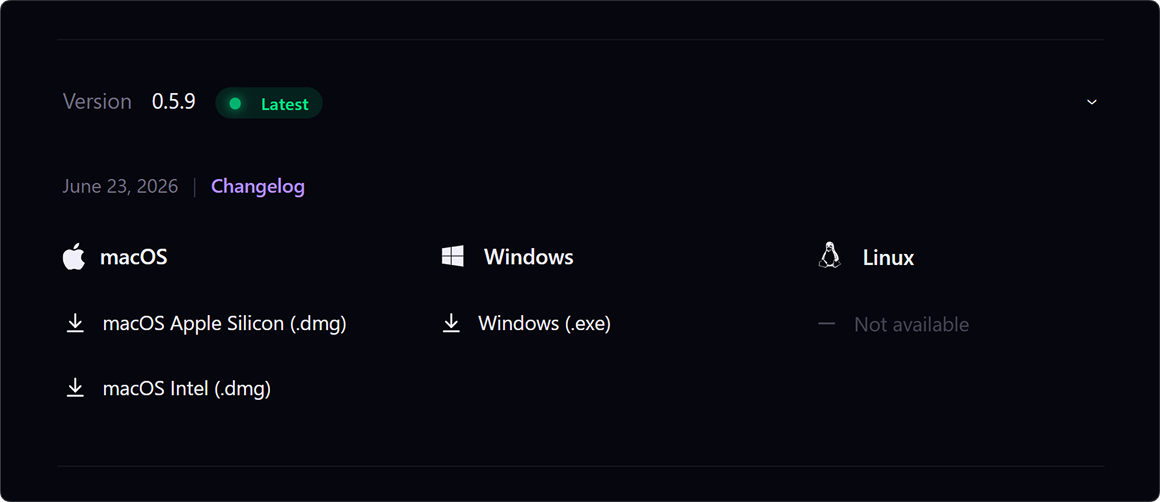
Grab the latest version of KryllOS for your computer's system:
- macOS →
.dmg(Apple Silicon or Intel, depending on your Mac) - Windows →
.exe
Step 0: New installation
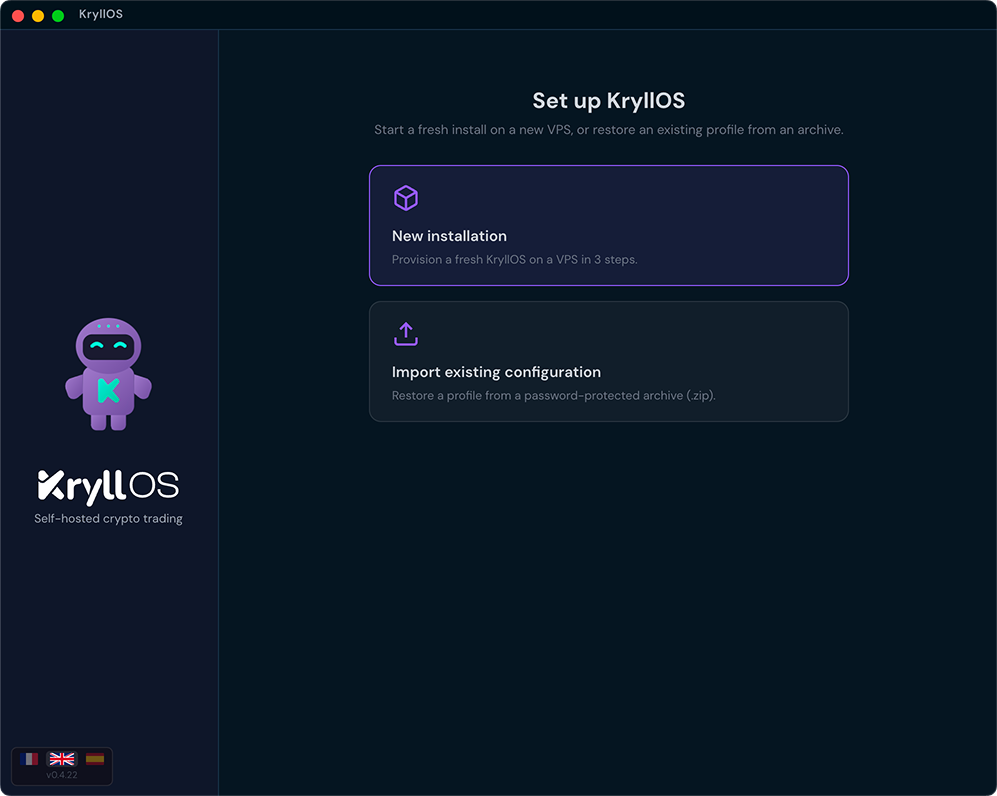
Launch the app, then click "New installation."
The other option, "Import an existing configuration," is for restoring a profile from an archive. For a first install, it doesn't concern you.
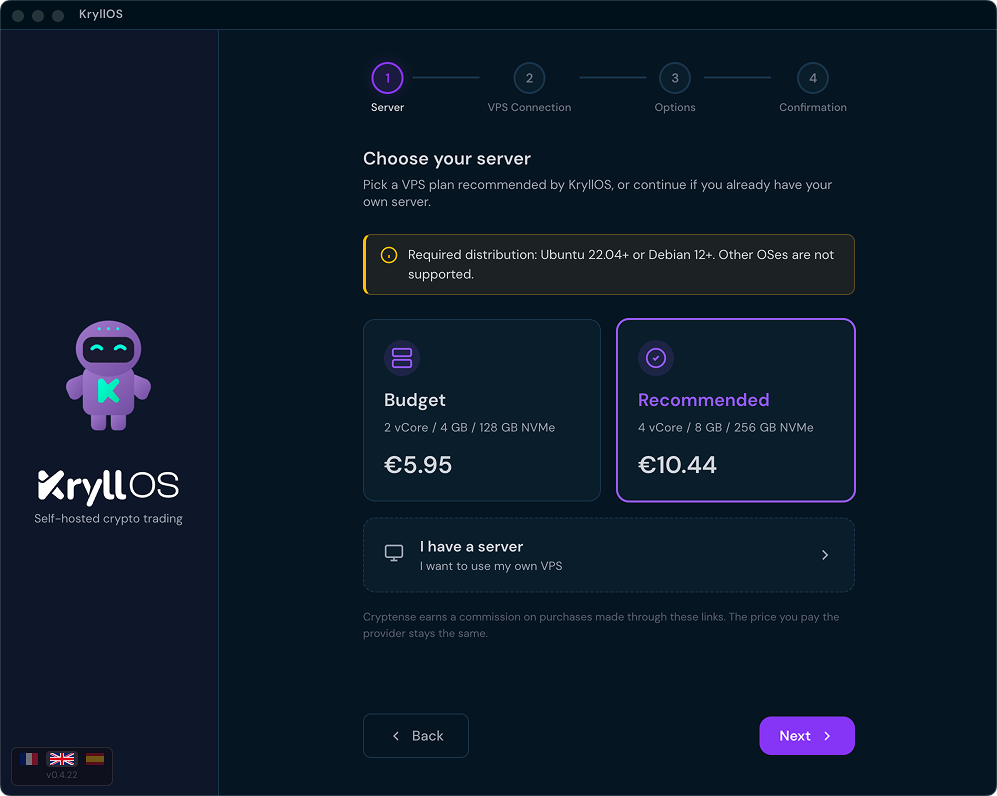
Step 1: Choose your server
If you already have your VPS, click "I have a server."
If you don't, KryllOS offers partner deals here (Budget or Recommended) so you can order one in two clicks. No VPS yet? We'll show you how to get one from Netcup right here.
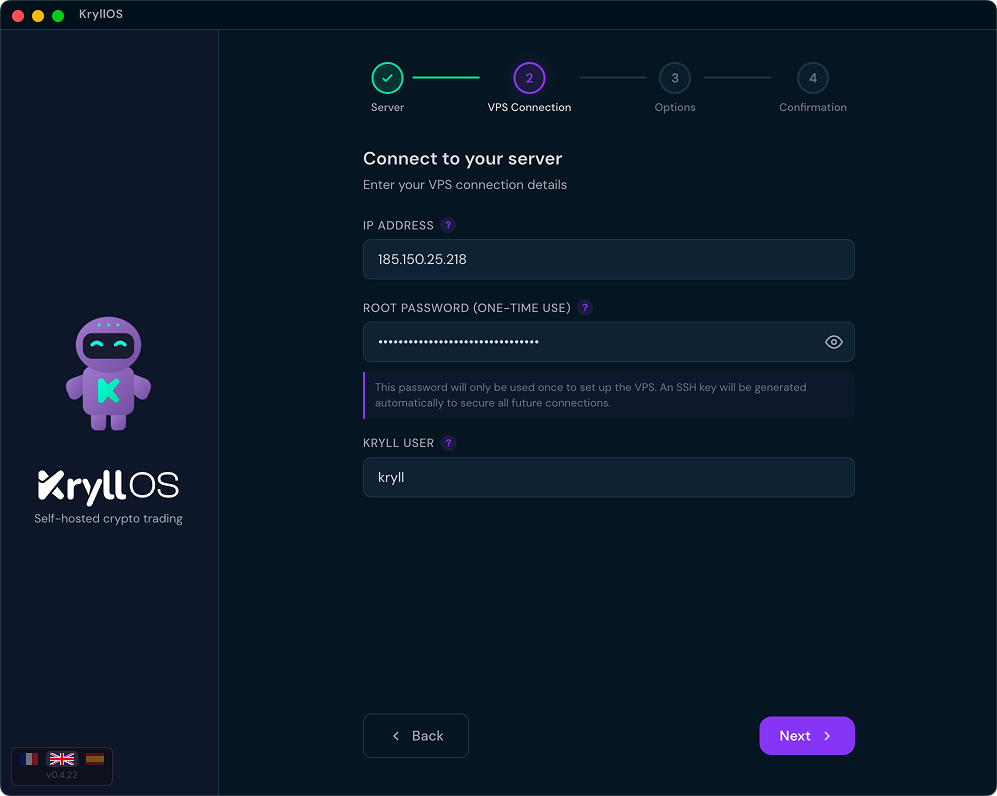
Step 2: Connect to your server
Three pieces of info to fill in:
- The IP address of your VPS
- The root password (one-time use)
- The username for your VPS (leave it as
kryllby default)
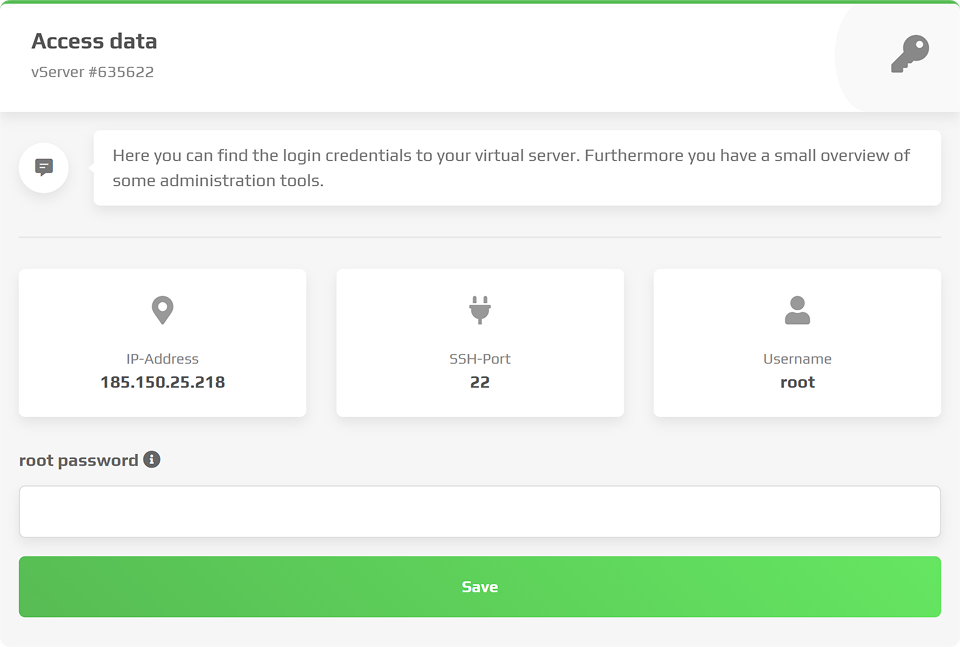
Where do I find my IP and root password?
It all happens in your VPS provider's interface:
- The IP address is shown on your server's page, in your dashboard (look for "IPv4" or "IP address"). It's your machine's public identity.
- The root password is in the VPS's security / login settings. Most providers ask you to generate (or reset) it yourself.
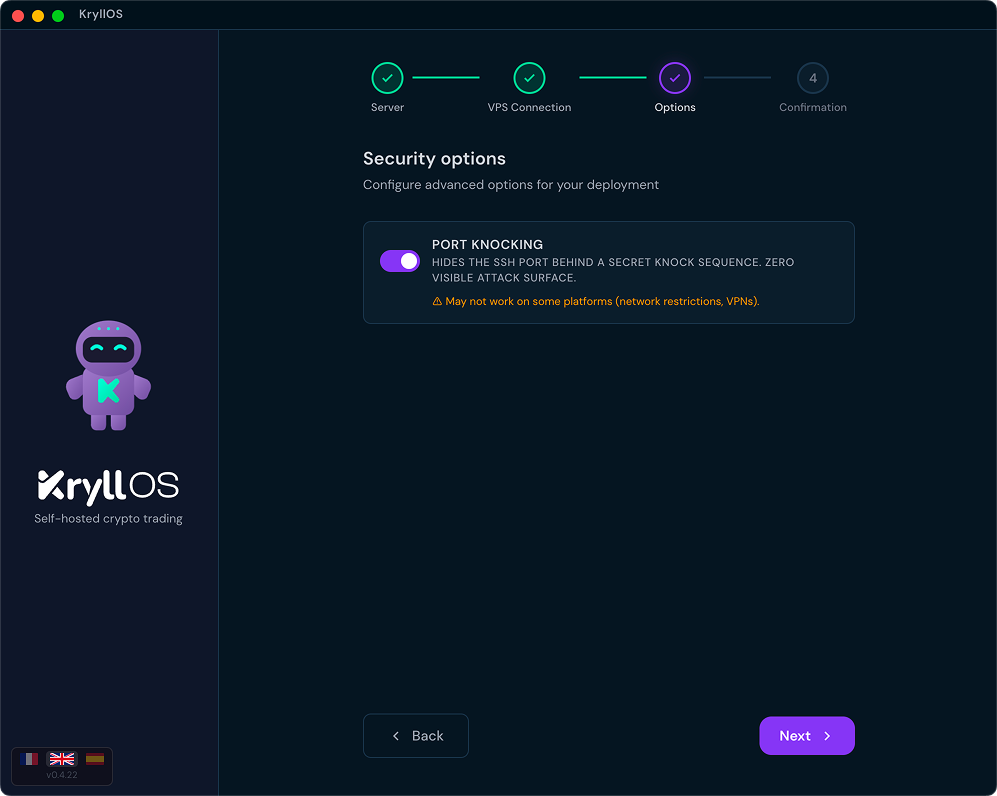
Step 3: Security options
Just one option here: Port Knocking.
What's it for? Your server keeps its front door (SSH) closed and invisible. It only opens if you "knock" a secret sequence in the right order. The result: from the outside, your server looks like it has no door at all, so there's nothing to attack.
We recommend turning it on if you trade with real funds.
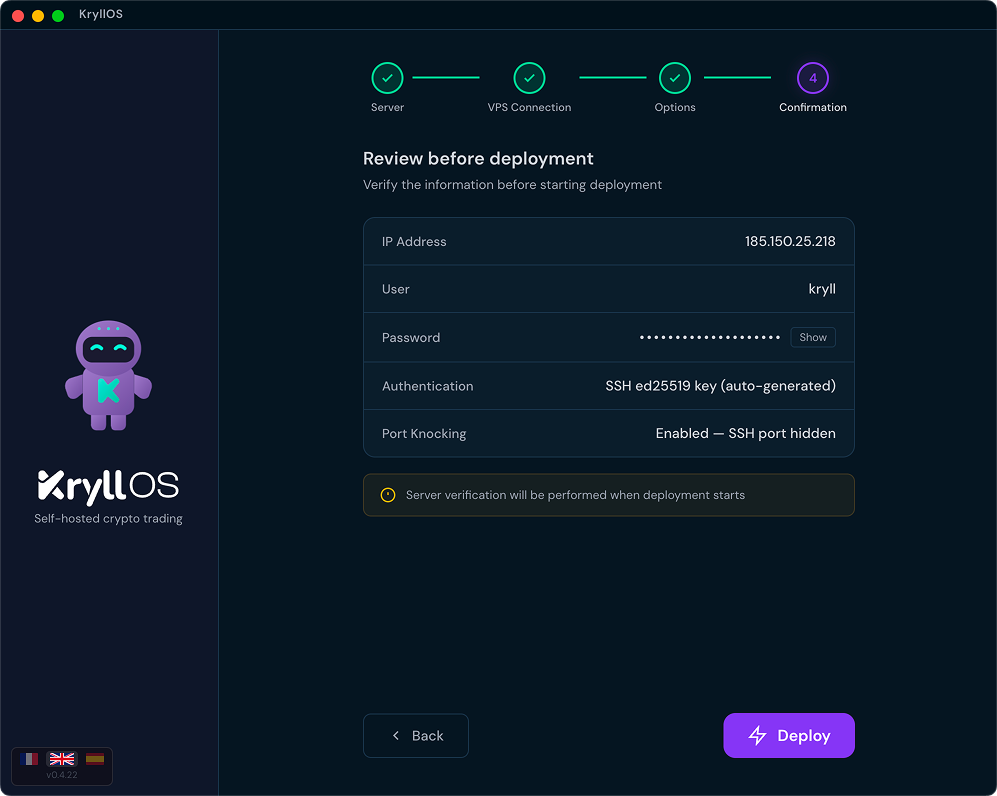
Step 4: Check before deployment
Last screen: the summary (IP, username, password, SSH key, port knocking). Click "Deploy" once you've reviewed the info.
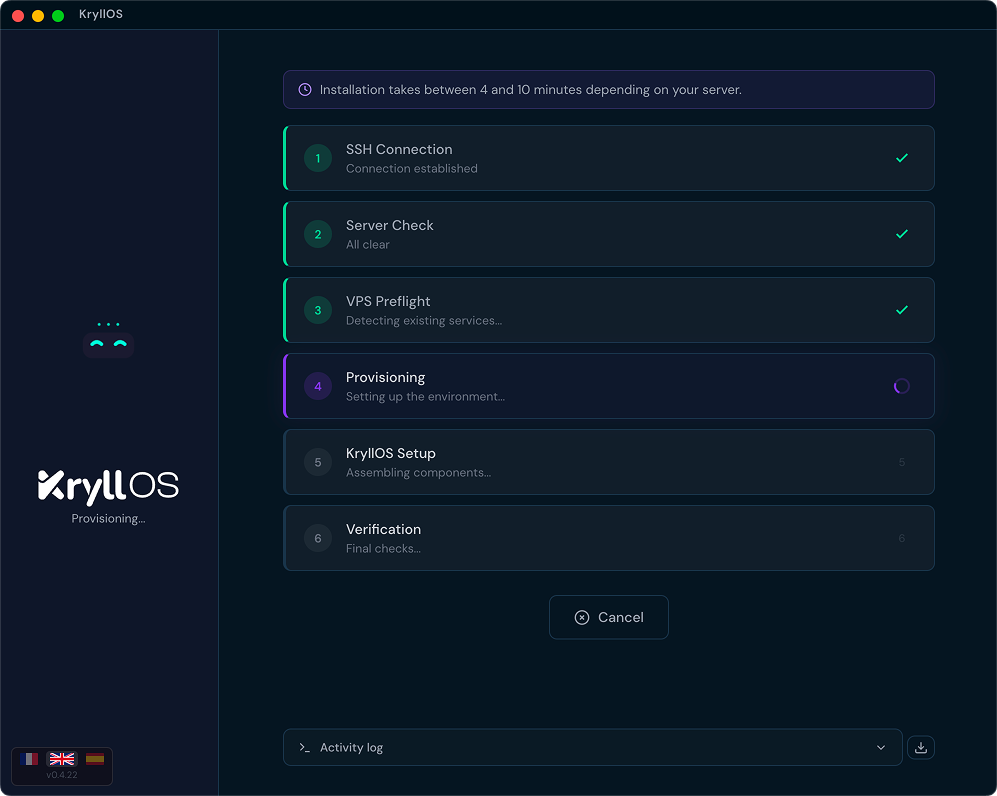
Installation kicks off
From here, KryllOS takes over and handles everything on its own: SSH connection, server validation, detection of existing services, configuration, installation, then final checks. Expect a few minutes depending on your VPS.
Good time to go grab yourself a coffee. (Or go check the charts, no judgment.)
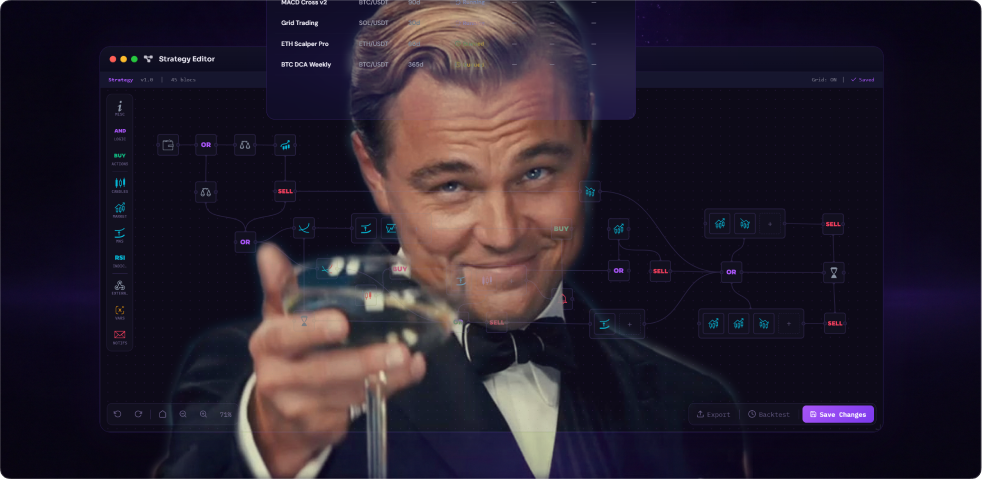
Welcome to KryllOS!
Once the installation is done, your app and your VPS are ready. You officially own your self-hosted trading station, all to yourself. Now have fun: open the editor, grab some blocks, and put together your first strategy!
Got a question? Stuck?
Don't worry, you're not alone. Join our official Telegram group, where the KryllOS team and community answer your questions: Join the Telegram →
Frequently Asked Questions
Before you dive in, or if you get stuck along the way, take a look here: we've rounded up the questions that come up most often.
What exactly is KryllOS?
KryllOS is an automated trading solution that lets you create trading bots from a visual no-code editor, or launch community bots available on the marketplace. Self-hosted and open-source.
Is KryllOS free?
KryllOS is 100% free. No subscription, no fees on your trades. The only possible costs: your VPS (a few €/month) and whatever you choose to buy on the marketplace.
Do you need to know how to code to use KryllOS?
No. The installation is automated, and strategies are built with drag-and-drop by connecting blocks together. Zero lines of code.
Which computers does the KryllOS app run on?
Windows and macOS (Apple Silicon and Intel). You download the .exe or the .dmg depending on your machine.
Do I have to leave my computer on for my strategies to run?
No, and that's the whole point. Your strategies run on the VPS, 24/7. Your computer is only there to steer them. Turn it off, and the bots keep trading.
What's a VPS and why do I need one?
A VPS (Virtual Private Server) is a server that runs nonstop in a datacenter, rented for a few euros a month. It's what executes your strategies while you sleep, without relying on your personal PC/Mac.
How much does a VPS cost?
A few euros a month. For reference, the deals offered in the installer start around €6/month (budget) and €10/month (recommended).
What are the minimum specs for the VPS?
A 2 vCore / 4 GB RAM / 40 GB disk config is enough to get started. To run several strategies comfortably, aim for 4 vCore / 8 GB RAM / 100 GB disk.
Where do I find my VPS's IP and root password?
In your provider's interface: the IP is on your server's page ("IPv4"), the root password in the security/login settings (often for you to generate yourself). The labels vary a bit from one provider to the next.
My VPS runs a different OS, what do I do?
Reinstall it with Ubuntu 22.04+ or Debian 12+ from your provider's panel (look for "Reinstall" / "Reinstall OS").
Does Kryll have access to my funds or my API keys?
No. KryllOS is self-hosted: your API keys stay local and Kryll never touches your funds. No custody, no middleman.